You speak,
they hear their native language
No foreign language skills? You can still run a foreign-language live room. Just speak the way you always do, and overseas viewers hear their local language — in your own voice.
- 1
Download and install for Windows
Windows 10 / 11. Double-click the installer and follow the prompts.
Download for Windows - 2
Sign up and start interpreting
Sign up with a code sent to your phone and log in. Pick your microphone and target language, click “Start”, and say a sentence to hear the result.
- 1
Download and install for Mac
Macs with Apple silicon, macOS 13 or later. Double-click SULFER_Mac.dmg and drag SULFER into “Applications”.
Download for Mac - 2
First launch
If macOS says it can’t verify the developer: open System Settings → Privacy & Security and click “Open Anyway”. Then install the virtual audio device “SULFER 麦克风” when prompted, and select it as the microphone in your streaming software.
- 3
Sign up and start interpreting
Sign up with a code sent to your phone and log in. Pick your microphone and target language, click “Start”, and say a sentence to hear the result.
- 1
Download the iPhone app
The iPhone app is now on the App Store. Tap the button below, or search for “SULFER” in the App Store.
Download on the App Store - 2
Sign in and start translating
Sign in with a code sent to your phone, pick your languages, and speak into your phone to hear the translation.
- 1
Download the Android app
The Android app is coming soon. Once it's ready, you can download it right here.
Coming soon - 2
Sign in and start translating
Sign in with a code sent to your phone, pick your languages, and speak into your phone to hear the translation.
Target languages · 19
English · Japanese · Korean · German · French · Spanish · Italian · Russian · Portuguese · Thai · Vietnamese · Indonesian · Turkish · Hindi · Dutch · Polish · Romanian · Greek · Czech
One app, four jobs
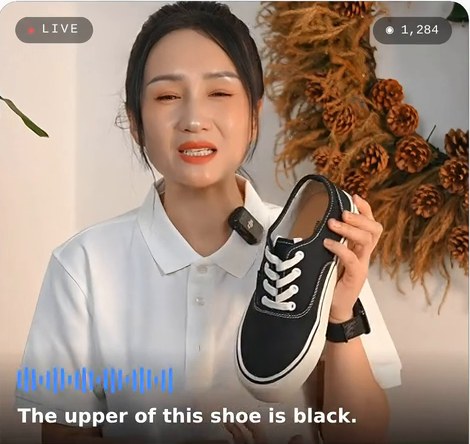
On for the whole stream, translating as you go
Connect it to the streaming software you already use, click Start before going live, and it runs unattended. You can also see the live-room chat in the app, with avatars, likes and viewer count.
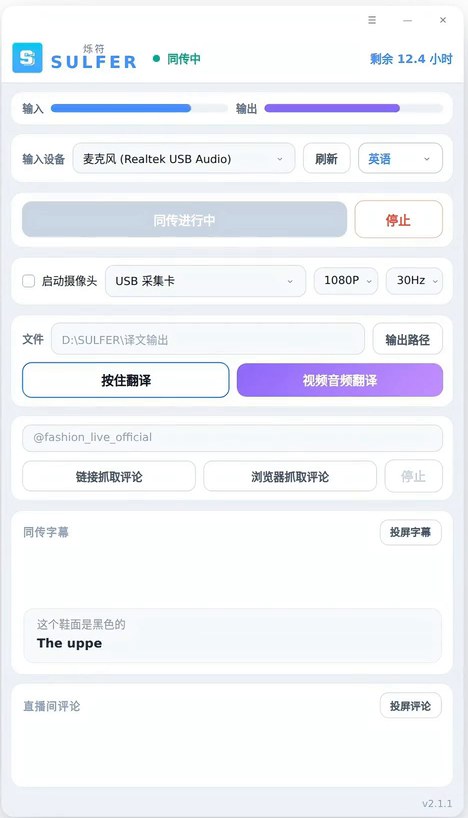
Translate a single sentence
Hold to speak, release to get the translation. For answering a viewer's question, or talking face to face with foreign customers offline — no need to start full interpreting.
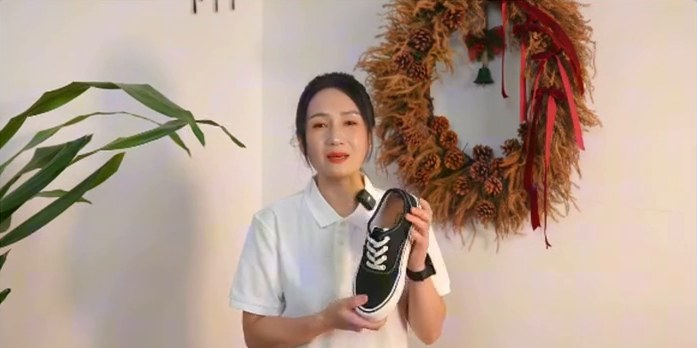
Take replays and short videos abroad
Drag in audio or video to get a translated voice file for re-editing and multi-platform distribution. Bilingual SRT subtitles (original + translation) can be exported at the same time.
See what you've been translated into
The translation can be shown on a separate screen, so the host can always check what they've been translated into. Peace of mind, and easy to adjust on the spot.
Viewers listen,
they don't read
In live selling, all attention is on the product. Viewers are watching the shoe in your hand — they won't also read a line of subtitles. So the translation has to be spoken, and it has to match the picture.
The usual way
- Subtitles — viewers have to stop and read
- Robotic voice, a fixed male or female voice
- Translates only after the whole sentence, falling further behind
- Hiring local hosts — expensive and hard to schedule
- Voice and picture out of sync
SULFER
- Spoken out loud — viewers just listen
- Clones your own voice
- Translates as you speak — output starts after one short phrase
- One host covers many markets
- The picture is delayed to match — what they hear matches what they see
When the camera reaches the sole,
the voice is talking about the sole
Translation always comes out later than the original — every interpreter works that way. What ruins a stream isn't being late, it's being "sometimes early, sometimes late": viewers watch you show the upper while still hearing a price from twenty seconds ago.
We delay the live picture by the same amount before sending it out, so the picture and the translation land on the same moment. Viewers see one complete, smooth foreign-language stream and never notice anything in between. Sentences that miss the time limit are dropped rather than squeezed in later — better to skip a filler phrase than shift the whole stream back.
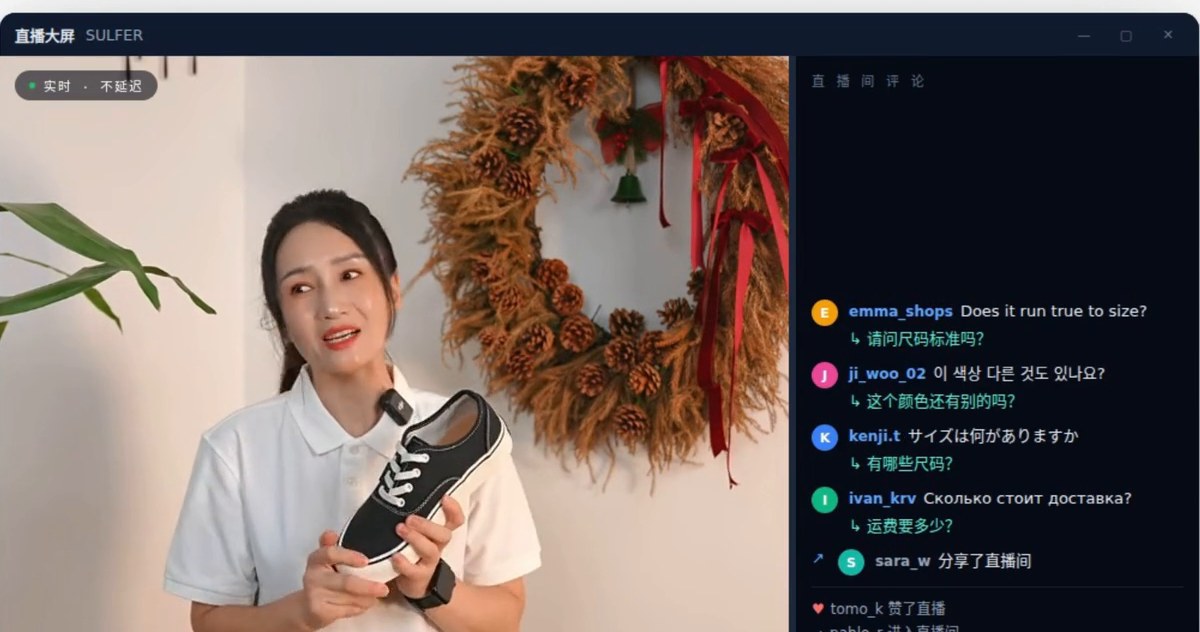
Stream and see yourself at the same time
Tick "Start camera" and a SULFER Camera appears in the device list of your streaming app or OBS — no plug-ins, no changes to your stream settings. Tick "Big screen" and the app opens another window: on the left a real-time picture for you, on the right the live-room comments — translated in real time, with avatars and usernames.
Recorded videos, straight into another language
Not just live streams. Drag in any replay, short video or library clip — the app recognizes the speech, translates it into the target language, and dubs it back onto the original picture in the host's own voice. Subtitles can be burned into the picture, or exported as an .srt file for your own editing.
Four things that actually close sales
It's your own voice
The system uses your real voice from the stream, following you sentence by sentence. No samples to record, no training — if someone else hosts, it switches automatically.
Translates as you speak, with a steady delay
As soon as a complete short phrase is recognized it's sent for translation and speech, without waiting for the whole passage. The delay stays in a steady range for the whole stream — it doesn't keep growing.
Prices must never be mistranslated
Prices, sizes, quantities, times and deal conditions are always kept — never shortened or left out. Say "yuan" and it stays in yuan; say a bare number and it's in the local currency.
Our own models, no third parties
Translation and speech synthesis run on our own servers, not on third-party general-purpose APIs. Your computer only captures and plays sound — an ordinary office laptop is enough.
Prices can't be left to a model's guess
A Japan-market stream sells in yen. If the host's "one hundred ninety-nine" were read as yuan, the price customers see would be off by a factor of twenty. So the currency is fixed before anything is sent for translation.
| Host says | Japanese stream | Korean stream | English stream |
|---|---|---|---|
| “199 yuan” | 199 CNY | 199 CNY | 199 CNY |
| 「199」 | 199 yen | 199 won | 199 USD |
You can also set up a glossary for your product category, fixing product names, brands and industry terms to set translations — so a term like "little yellow cart" (the shopping cart) never comes out as "a yellow car".
Your first stream in three steps
Download, install, sign up with your phone
Windows client — double-click to install. Sign up with a code sent to your phone, then log in to try it.
Choose a microphone and a target language
Two drop-downs at the top: choose, click "Start interpreting", and say a sentence into the microphone to hear the result.
Connect to your stream — we'll help set it up once
We help you connect it to your streaming software the first time. Once set up it stays that way, and every stream after that is just one click on Start.
Charged by translated time —
no talking, no charge
No charge while the app is open but interpreting hasn't started, and no charge for pauses while you're not speaking. File translation is billed by the length of the final audio. The main window shows your remaining time and changes color when it's running low, so it never stops without warning. For prices and top-ups, please contact support.
Things you may want to ask first
Do I need a powerful computer?
No. Translation and speech synthesis happen on our servers; your computer only captures and plays sound, so an ordinary office PC is fine. The main requirement is a stable internet connection.
Will viewers hear a robot voice?
No. The system clones your own voice, so it sounds like you speaking the foreign language. No samples or training needed — it follows you automatically once you go live.
Is there a delay?
Yes. All interpreting lags, human interpreters included. We delay the live picture by the same amount so picture and translation match, and viewers don't notice any mismatch.
How accurate is it?
It does well with everyday selling talk, product explanations and prices, and you can set up a glossary for your category to lock in product names and industry terms. Very colloquial dialect and convoluted long sentences can still go wrong.
Which languages can the host speak?
Chinese, English, Japanese, Korean, German, French, Spanish, Italian, Russian or Portuguese. Chinese currently works best; the other input languages are still being improved. Output is available in 19 languages.
Can it translate into several languages at once?
One stream outputs one language; you can stop and switch midway. To cover several markets, run separate streams, or use file translation to turn replays into several languages.
Can several people share one account?
No. Only one device can be online at a time; logging in on a new device signs out the old one. For several people, please open several accounts.
How is the app updated?
It checks automatically when you open it and tells you when there's a new version — one click and it's done, no need to download the installer again. New languages and features are free updates.
Does it work on a Mac?
Yes. The Mac version runs on Macs with Apple silicon (M-series — almost every Mac from late 2020 onward) with macOS 13 or later. After downloading, double-click SULFER_Mac.dmg and drag SULFER onto the “Applications” folder next to it. If macOS says it can’t verify the developer the first time you open it, go to System Settings → Privacy & Security, scroll down and click “Open Anyway”. SULFER will then offer to install its virtual audio device “SULFER 麦克风” — click Install and enter your Mac password once, then choose “SULFER 麦克风” as the microphone in your streaming software. Audio–video sync isn’t available on Mac yet.